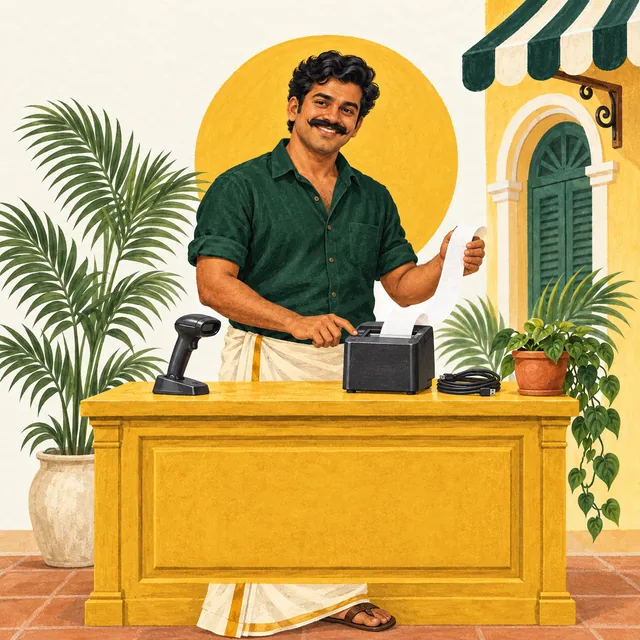
Record what is already on the counter
“USB printer” is a connection description, not a model number. List each device separately, including the kitchen printer if you have one. A photo of its model label and the connection names is more useful than a photo of the whole counter.
Swipe the table, or focus it and use arrow keys, to read all columns.
| Device | Details to record |
|---|---|
| Computer | Model, operating system and version, memory, available disk space and the number of counters using it. |
| Receipt printer | Exact model, connection, roll width, installed driver and whether cutting the receipt is required. |
| Kitchen printer | Model, paper width, connection, preparation station and how staff notice a new ticket. |
| Scanner | Model, USB or Bluetooth connection, configured input mode and the label types you scan. |
| Other devices | List a cash drawer, scale, customer display or extra order-taking device as its own requirement. |
Record model and configuration details without sharing passwords, customer records or payment information. Ask Bill Pondy to confirm the requirements for the installed edition and modules before purchasing equipment.
Give the receipt and kitchen ticket different jobs
The receipt explains the sale and payment to the customer. A kitchen order ticket tells staff what to prepare. In a restaurant, test both destinations from the same sample order: a readable counter receipt does not prove that the kitchen received its ticket.
Posnic documents separate bill and KOT printing, with an explicit reprint action for kitchen copies. Confirm these actions in your Bill Pondy installation. Add a later dish, check the new kitchen work and ask how staff distinguish a copy from another order. See the KOT workflow for the full service example.
If you plan to share one printer, demonstrate how staff identify and deliver each document. If you use separate printers, check the selected destination and labels at both. Include A4 invoices or reports as separate output requirements when needed.
Test the paper width with an awkward receipt
Common thermal setups use 58 mm or 80 mm rolls, but the selected printer, its settings and the receipt layout must agree. A wider roll gives more horizontal space; it does not by itself prove that long names, totals or a kitchen note will print correctly.
- Use a long product or dish name and a second item in a similar size.
- Include multiple quantities, a discount and a total you have calculated separately.
- Check the currency symbol, decimal amounts, margins and final line.
- If you need Tamil names, include your actual sample text and read the paper output.
- Check the kitchen’s order reference, quantities and preparation notes separately.
Keep the sample receipt with your test record. Follow the manufacturer’s instructions before changing paper guides or settings; fitting a smaller roll alone is not a compatibility test. The Epson TM-T20IV reference guide (PDF) is an example of model-specific paper and interface documentation, not a Bill Pondy approved-device list.
Check the connection you will actually use
Use the planned computer, cable or network during the demo. For USB, identify the device and selected driver. For a network printer, record who maintains its address and confirm that the counter can reach it. For Bluetooth, demonstrate pairing, reconnecting and the intended working position. Ask the installer to document the final configuration.
Posnic’s hardware matrix distinguishes automated protocol checks from physical-device tests. A supported command format such as ESC/POS, or a printer appearing in the operating system, is a starting point. Acceptance means completing your required print tasks on that exact setup. Repeat the relevant checks if a model, connection or computer changes.
A scanner beep is only the first check
Posnic documents keyboard-style barcode input. In this mode, often called USB HID keyboard or keyboard-wedge, the scanner sends characters as keyboard input. Other interface modes may behave differently, so check the scanner’s own manual rather than assuming every USB device works the same way.
Scan a known label into the intended search field and compare the complete value, including leading zeroes where present. Then confirm that it selects the right product and pack size, not just a similar name. Test a second scan, a damaged label and manual lookup when there is no readable barcode. Use the barcode billing guide to follow the basket through to a saved sale.
Record any unexpected prefix, missing character or repeated input before changing settings. Manufacturer instructions such as the Zebra DS2208 reference guide (PDF) describe interface and keyboard settings for their specific models. A manual reference is not evidence that Bill Pondy has physically tested that model.
Rehearse one interruption with sample data
With the installer, use a disposable sample order to practise running out of paper or losing a printer connection. Agree the test beforehand and follow the device instructions. Ask the cashier to find the saved order and explain what to check before retrying.
For a kitchen ticket, staff should check whether some or all of the order reached the kitchen before resending it. A print dialog closing or a queue accepting a job does not prove that a complete ticket came out. Record the recovery steps and who handles an uncertain result. Test broadband loss separately if you need local billing during an internet interruption.
Turn the observations into a buying decision
Use the blank worksheet to record the device, test, actual result and follow-up owner. Mark each item Passed, Needs work, Untested or Not required for your business. A blank result remains untested. For example, if a receipt clips a long item name, record the issue, agree the adjustment and keep the corrected paper from the repeat test.
Retain working equipment only after the required tasks pass. Put any replacement model, accessories, configuration work and remaining tests in the written quote. The worksheet records your observations; it is not a hardware certification.
For a Bill Pondy demo, send your business type, Puducherry or Karaikal locality and equipment list through the contact page. Confirm whether devices will be checked remotely, at the South Boulevard office or through a separately agreed visit.
Where the product details come from
These checks use the Posnic hardware matrix and counter KOT printing documentation, reviewed on 20 September 2026. Their stated test boundaries matter: documentation and software tests do not replace a physical demonstration of your Bill Pondy installation.
A note from Bill Pondy
We provide a white-label Posnic POS offering with the restaurant module. These are practical planning guides from the business offering the software; examples are illustrative. Confirm features, equipment, prices and service arrangements for your own setup. Questions or corrections? Talk to us.